| Plan Availability | Starter | Pro | Premium | Enterprise |
 |
|
|
|
Running an event is a collaborative effort and involves multiple people, such as speakers, coordinators, and producers. In this guide, we provide a detailed breakdown of the roles you can assign at the session level in the event space, along with the permissions and access levels for each role.
Roles in the Event Space
The following user roles are available at the session level in the event space:
Role |
Function |
|---|---|
| Producer | Access to everything inside the session. Has full backstage and on-stage access. |
| Speaker | Delivers a presentation onstage. Has backstage access only to the sessions to which they're added. To learn more about Speaker permissions options, click here. |
| Coordinator | Has similar access to that of a speaker but cannot go onstage. This role is ideal for team members such as event moderators, support staff, or speaker handlers who need to be backstage but shouldn't be visible in the event agenda. |
| Attendee | They can only watch the session and don't have backstage access. However, if video Q&A is enabled, they can join onstage using the Raise Hand feature. |
Key points to note:
- The event creator in Studio is the default event producer. However, you can add additional producers if needed.
- Users can have different roles in different sessions of the same event.
- Any user can be added as a speaker, coordinator, or producer, regardless of their access to Goldcast Studio.
- A user can simultaneously be a speaker and a coordinator/producer for a session.
- Attendees are always attendees and cannot be assigned any other roles.
Heads Up! Currently, other users in Studio, including the organization and team admin, will NOT be, by default, added as producers for all events. Clicking the Event Space link in the Studio will make you join the event as an attendee. If you require backstage access, you must proactively add yourself as a producer/coordinator to the required sessions.
Event Space Staff Roles & Permissions
Here's a quick overview of the different permissions and access levels of each Goldcast staff role:
| Producer | Coordinator | |
| BACKSTAGE | ||
| Go backstage and use the backstage chat | ✓ | ✓ |
| Mute/unmute audio and video in the backstage | ✓ | ✓ |
| Launch Speaker Alert Messages | ✓ | ✗ |
| Move speakers on/off stage | ✓ | ✗ |
| Mute/unmute speakers | ✓ | ✗ |
| Remove users from the backstage | ✓ | ✗ |
| Start/end sessions | ✓ | ✗ |
| View attendee count | ✓ | ✗ |
| ON STAGE | ||
| Go on stage | ✓ | ✗ |
| Share slides | ✓ | ✓ |
| Share screen | ✓ | ✓ |
| Play and stop video | ✓ | ✓ |
| Publish Images/Logos to Stage | ✓ | ✓ |
| Publish Overlay to Stage | ✓ | ✗ |
| Modify stage layout | ✓ | ✓ |
| Q&A | ||
| View Q&A | ✓ | ✓ |
| Answer a question in text | ✓ | ✗ |
| Share a question to stage | ✓ | ✗ |
| Approve a question | ✓ | ✗ |
| Assign a question to a speaker or staff | ✓ | ✗ |
| Delete a question | ✓ | ✗ |
| Approve video Q&A | ✓ | ✗ |
| POLLS | ||
| Open and close polls | ✓ | ✓ |
| Share polls to stage | ✓ | ✓ |
| SURVEYS | ||
| Open and close surveys | ✓ | ✓ |
| TICKERS | ||
| Publish session ticker messages | ✓ | ✗ |
| CHAT | ||
| Delete chat messages | ✓ | ✓ |
| Push session chat to Q&A | ✓ | ✓ |
Heads up! If a user is a producer in any session in an event, they will have all the permissions listed in the Event-Level Permissions section above across the entire event. This does not apply to the Session-Level Permissions listed above.
How to assign staff user roles for a session
There are two steps to adding a producer/coordinator to a session.
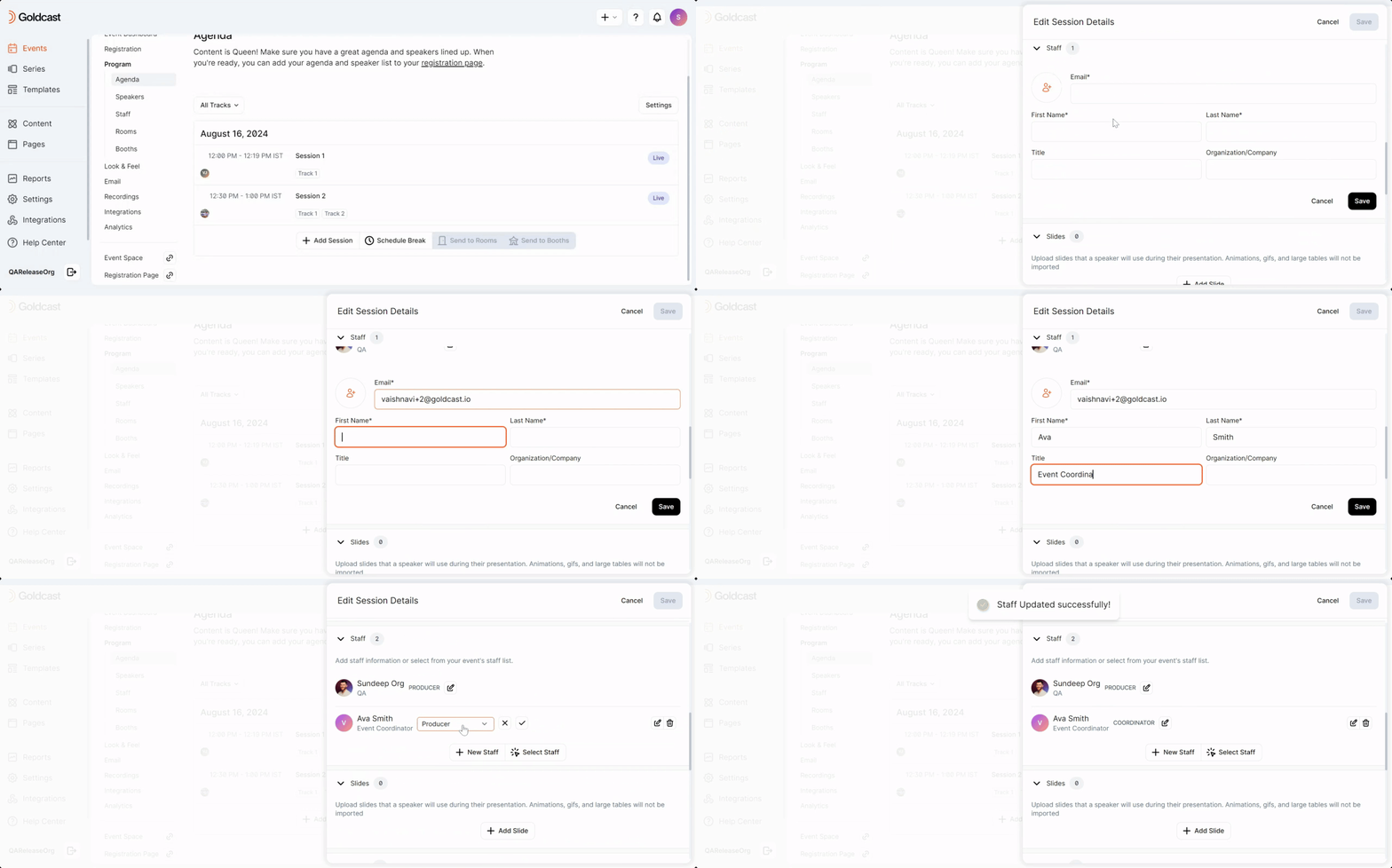
Step 1: Add a Staff Member to the session
- Log in to Goldcast Studio and open your event.
- Navigate to Program → Agenda using the left sidebar.
- Click on the session to open the Edit Session Details window.
- Scroll to the Staff section, and click +New Staff.
- Add the staff details:
- Mandatory: Email, First Name, and Last Name
- Optional: Title, Company, and profile picture
- Click Save.
Step 2: Assign their Role
New staff members added to the session are, by default, assigned the role of a Producer. You can change this by clicking the edit icon  next to their name in the Staff section in the Edit Session details window.
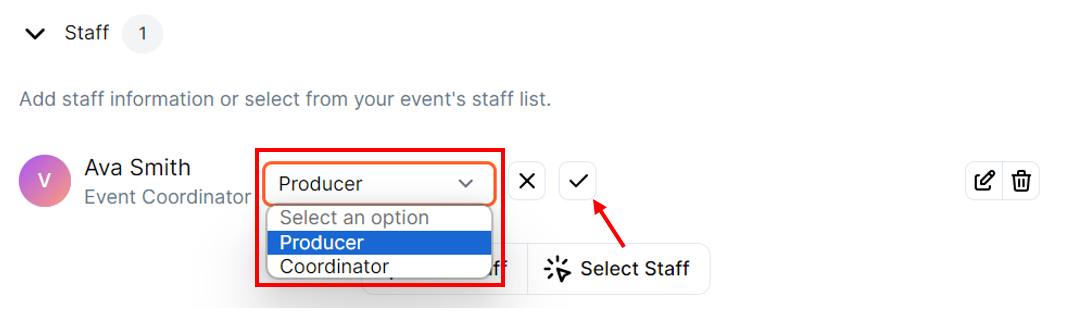
Pro Tip: Use the Select Staff button to get a list of all added staff members for the event and assign them to other sessions.

Staff Tab
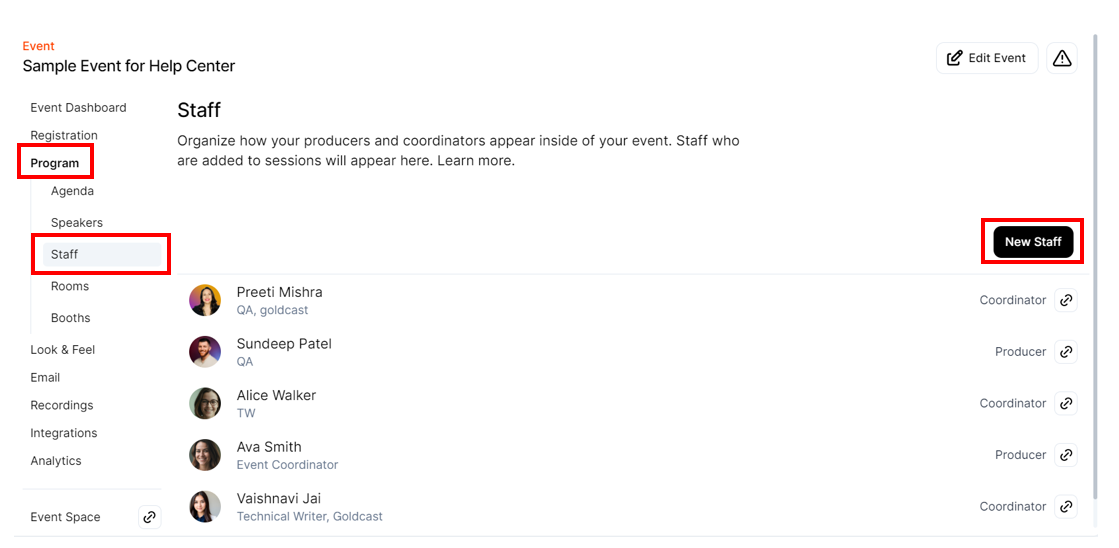
Use the left sidebar to navigate to the Program → Staff tab, where you can quickly see the list of all producers and coordinators for the event and the sessions to which they have been added.
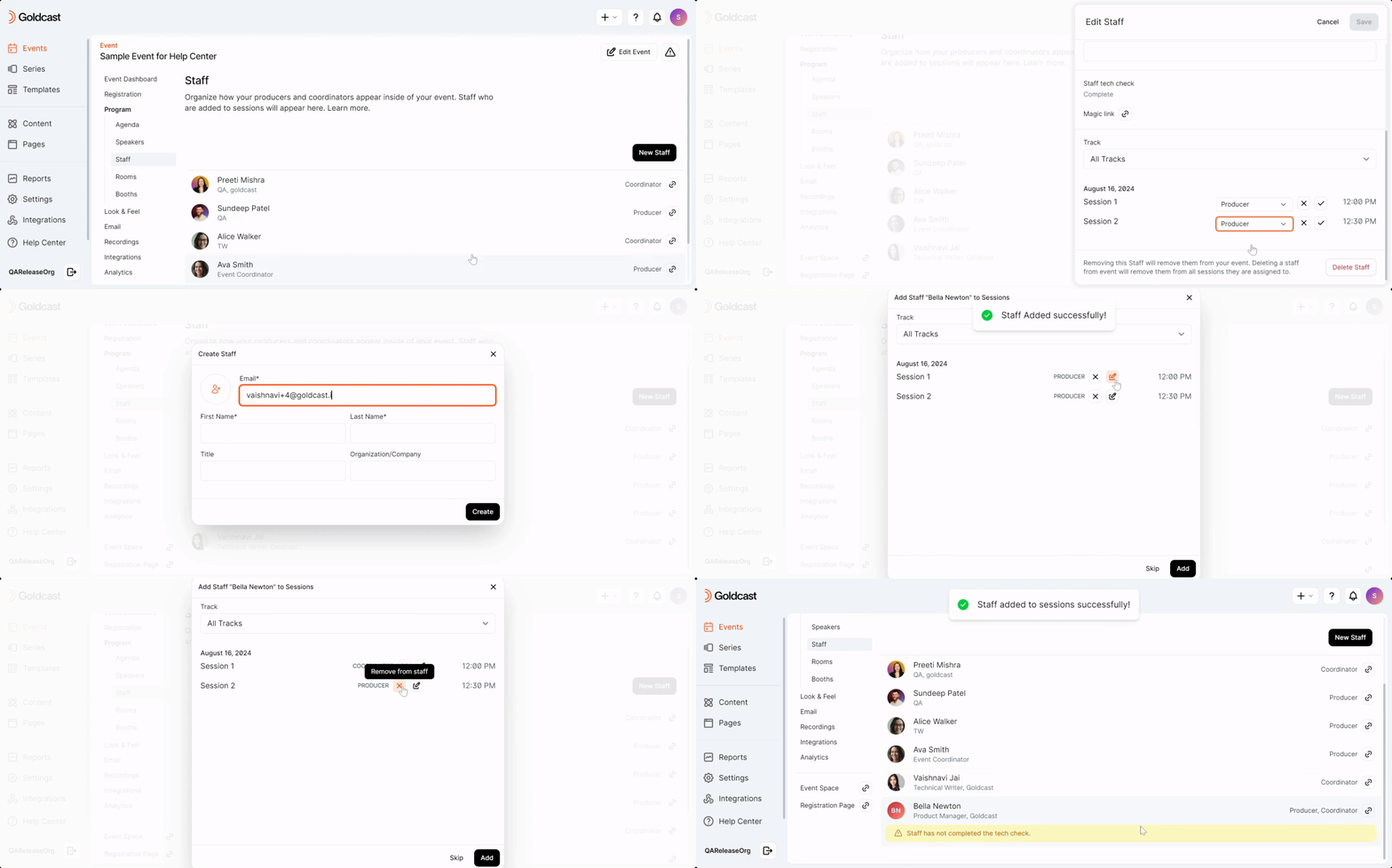
Click on any staff member to change their roles (Producer to Coordinator or vice versa) and change the sessions to which they are assigned. Use the New Staff button to add staff members and assign their roles and sessions.
FAQs
1. I am the event creator, but do not want to be the producer. What do I do?
Add another producer for the event, and remove yourself from the producer list.
2. Can a user have different roles in different sessions?
Yes. A user can be a producer in one session, a speaker in another, a coordinator in another, an attendee in another, and so on. There are no restrictions.
3. How does session redirection work for different roles?
Role |
Session Redirection Notification |
|---|---|
|
Producers/ Coordinators |
You will see a redirection pop-up that says, “Attendees are being redirected. Would you like to be redirected?" with the buttons Yes and No. |
| Attendees | Will be redirected via the Attendee Redirection pop-up. |
4. Can I revoke access for a user while the event is live?
If a Producer or Coordinator is deleted from a session in the Studio, their access will be revoked in the Event space in real-time.
5. Can I change a user role while the event is live?
Yes, any changes you make to the user role in the Studio while the event is live will be reflected in real-time in the Event Space.
6. What happens if other users in Studio enter the event via the Event Space link in Studio?
If a Studio user is not assigned a role in an event and clicks the Event Space link from Studio, they will enter the event as an attendee.
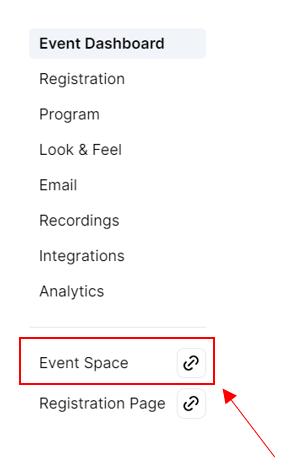
To have backstage access, you must be a Producer, Coordinator, or Speaker for that session. Other Studio users can only access the event as attendees.
8. Are Event roles and permissions in all pricing plans?
Event space roles are available for all pricing plans: Starter, Pro, Premium, and Enterprise.
9. What is the cost of adding producers and coordinators to a session?
Any existing Goldcast Studio user can be added to any event as a Producer or Coordinator at no extra cost. Additionally, you can add non-Goldcast Studio users as Producers/Coordinators/Speakers to any sessions. However, these users will have access only to the event space and not to the backend Goldcast Studio.