Table of Contents
You might have noticed various alerts popping up as you create and configure your Goldcast event. In this article, we provide a rundown of the different alerts in Goldcast Studio and how to resolve them.
How to access the alert center
Follow these steps to get a list of all the current alerts for your event:
- Login to Goldcast Studio and open your preferred event.
- Once on the event dashboard, click the Alerts icon or the Alerts section in the right panel.
- This opens the Alerts Center, which gives you a list of all unresolved alerts for the event.
- Clicking on any alert takes you to the corresponding tab to resolve it.
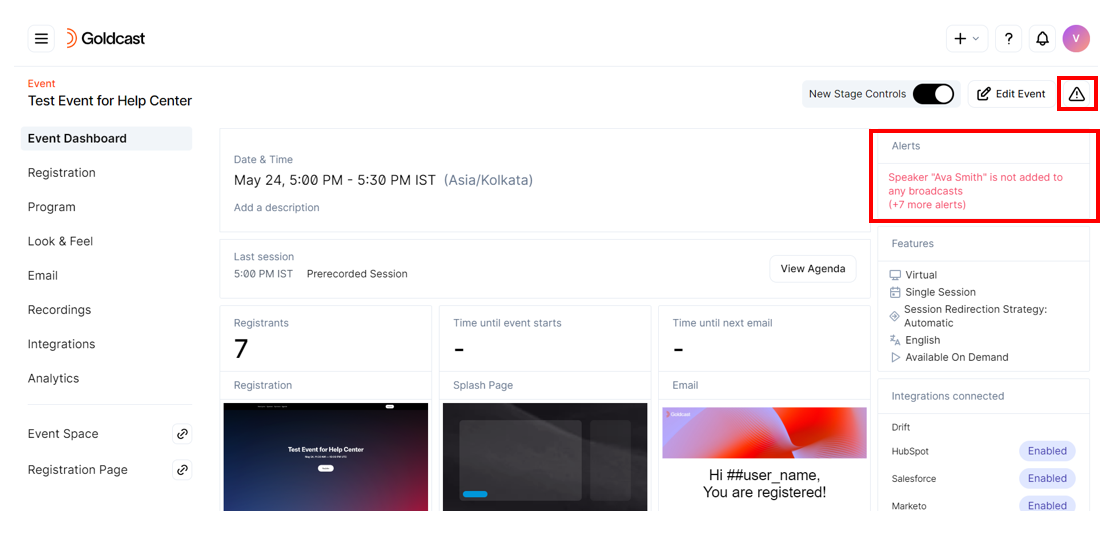
Alerts list
| Alert | How to resolve it |
|---|---|
| Agenda X is not added to a track | Add unassigned sessions to one or more tracks. |
| Session X has no speakers | Add speakers to the session. |
| Session X is not added to a track | Add unassigned sessions to one or more tracks. |
| Buffer video X has an error or a warning | Check if the buffer video fits Goldcast’s video specifications. |
| Email template X does not include users' magic links | Include the merge tag #### in the email template. |
| Email template X does not include QR code or location | Include the merge tags ##checkin_qrcode and ##event_location to include the QR code and the location in the email template for field events. |
| Registration confirmation emails will not be sent | Navigate to the Email Schedule section and turn on the toggle for the Registration Email. |
| Broadcast X's agenda needs attention | You’ll notice this alert when you haven’t tested a pre-recorded session and its start time is within 60 minutes of the current time. |
| Broadcast X has no video | Add video(s) to your pre-recorded session. |
| Speaker John Doe has not completed the tech check | Schedule and complete the speaker tech check. |
| Speaker John Doe is not added to any broadcasts | Add the speaker to a session. |
| Event/Track X has overlapping sessions. Attendees may be redirected at the start of the later session and miss the end of the first session. | Revise your event agenda to avoid overlaps between sessions. |
| Video X has an error | Check if the video fits Goldcast’s video specifications. |
| Video X has a warning | Check if the buffer video fits Goldcast’s video specifications. |
| This video X will not play in the session until it is fully processed. | Verify if the video processing is completed. Contact our support team if the video isn’t fully processed before the scheduled start time. |
| Session X has no processed videos. Videos must be processed to play during the session. | Add video(s) to your pre-recorded session. Also, make sure the video is processed before the scheduled start time. |
| Session X's video Y is processing. The video will not play until it's fully processed. | Check if the video processing has been completed. Contact our support team if the video isn’t fully processed before the scheduled start time. |
| Session X's video Y has a processing error. Please re-upload. | Reupload the video. |
| Total video length is over 2 minutes shorter than the session duration for your session X | Revise the length of the uploaded video(s) to meet platform specifications. Refer here for the recommended video length for pre-recorded sessions. |
Event Level Alerts & How To Resolve Them
Best Practices To Streamline Your Multi-Session Virtual Events
De-indexing Your Goldcast Pages From Google Search Results
Character Limits for Text Fields
Upload Custom VTT Caption Files to Pre-recorded Sessions
How To Cancel a Goldcast Event
What happens after the 90-minute limit?
Block Inappropriate Emojis from Event Chat
Webinars Vs Events
Add Words to Your Organization’s Word Bank (Glossary)
Which Event Type to Use?
How to Make Your Goldcast Pages Searchable on Google
Best Practices to Streamline Your Webinar